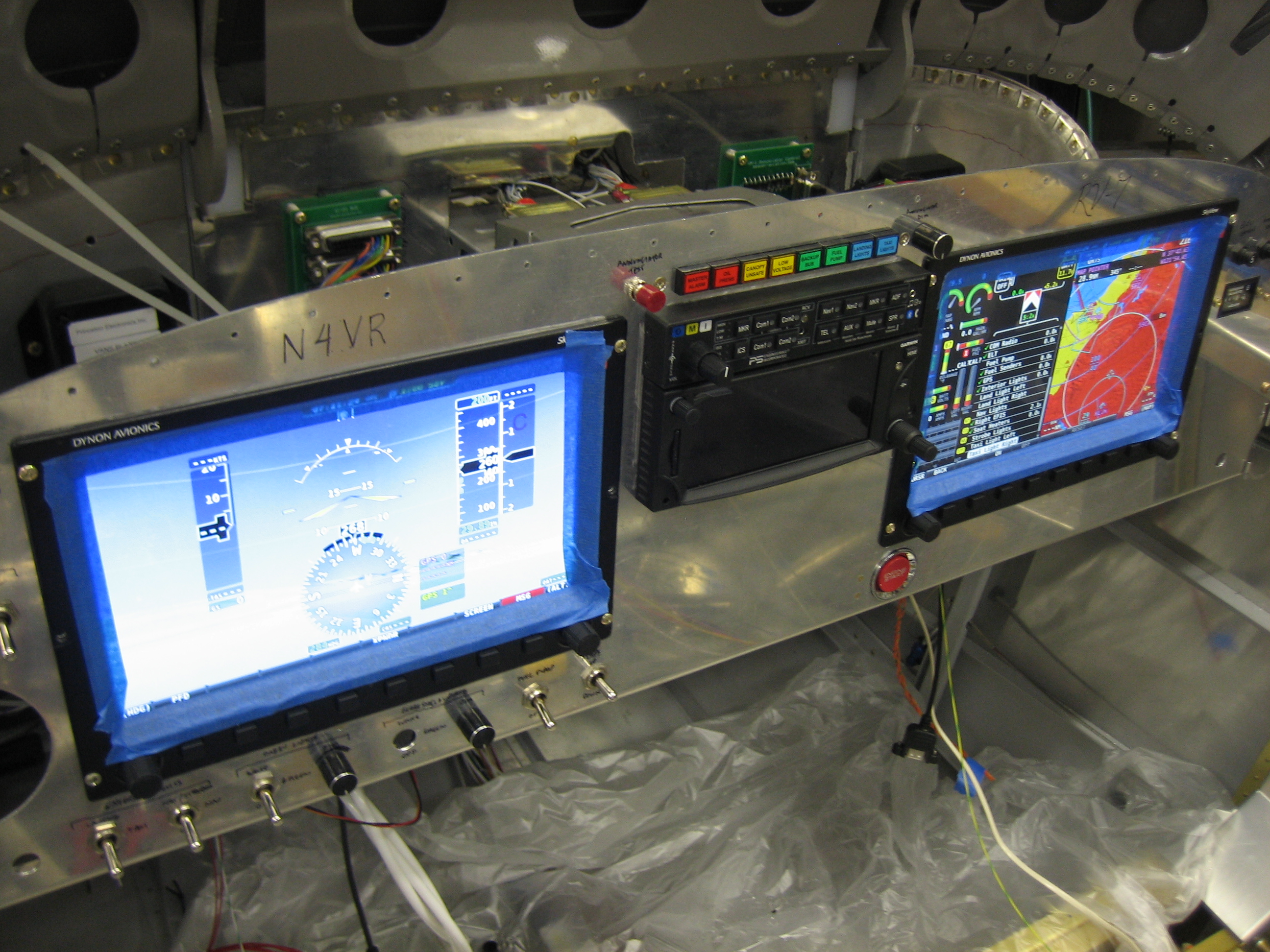
Installed Real Vertical Power VP-X Pro

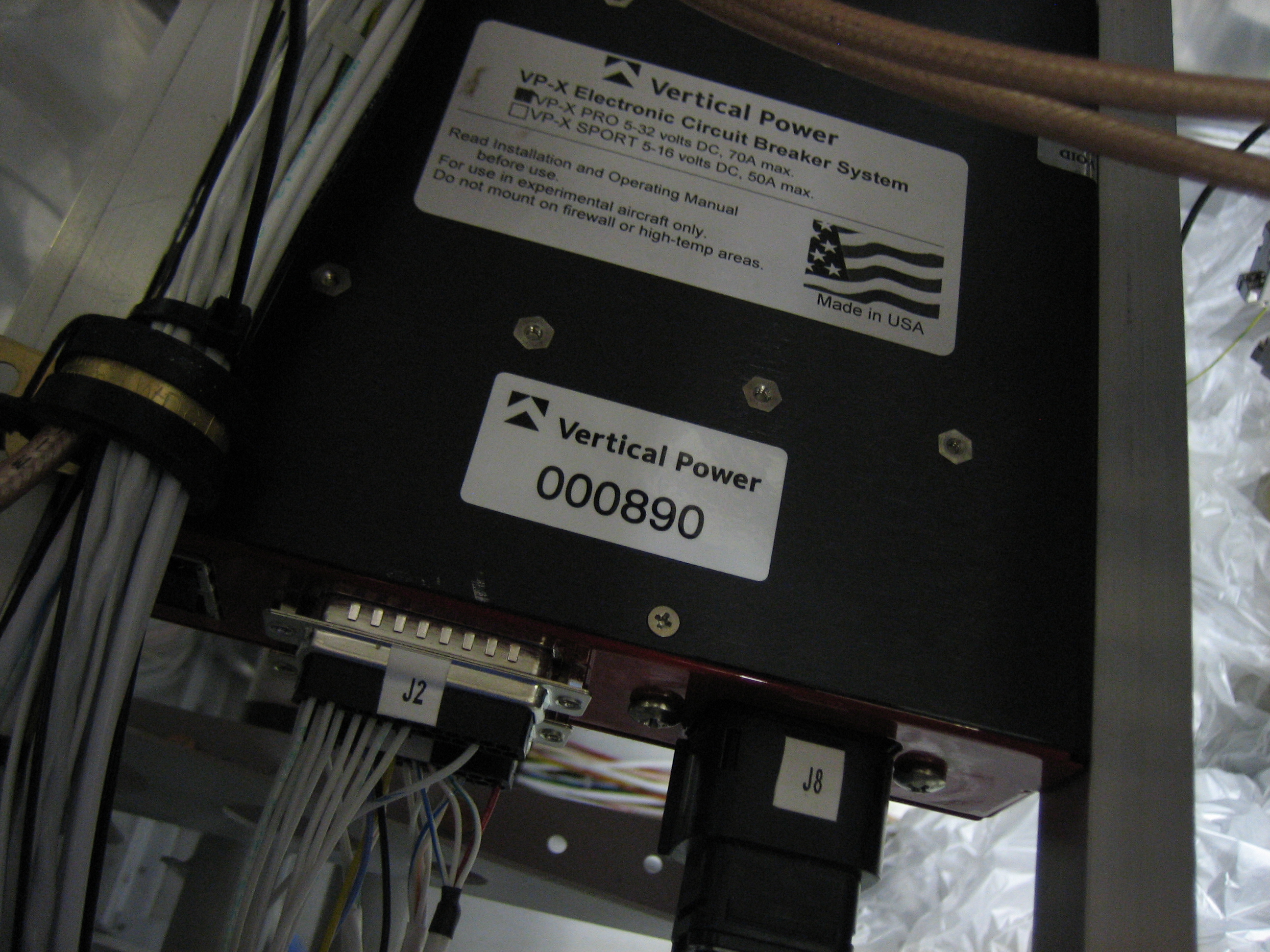
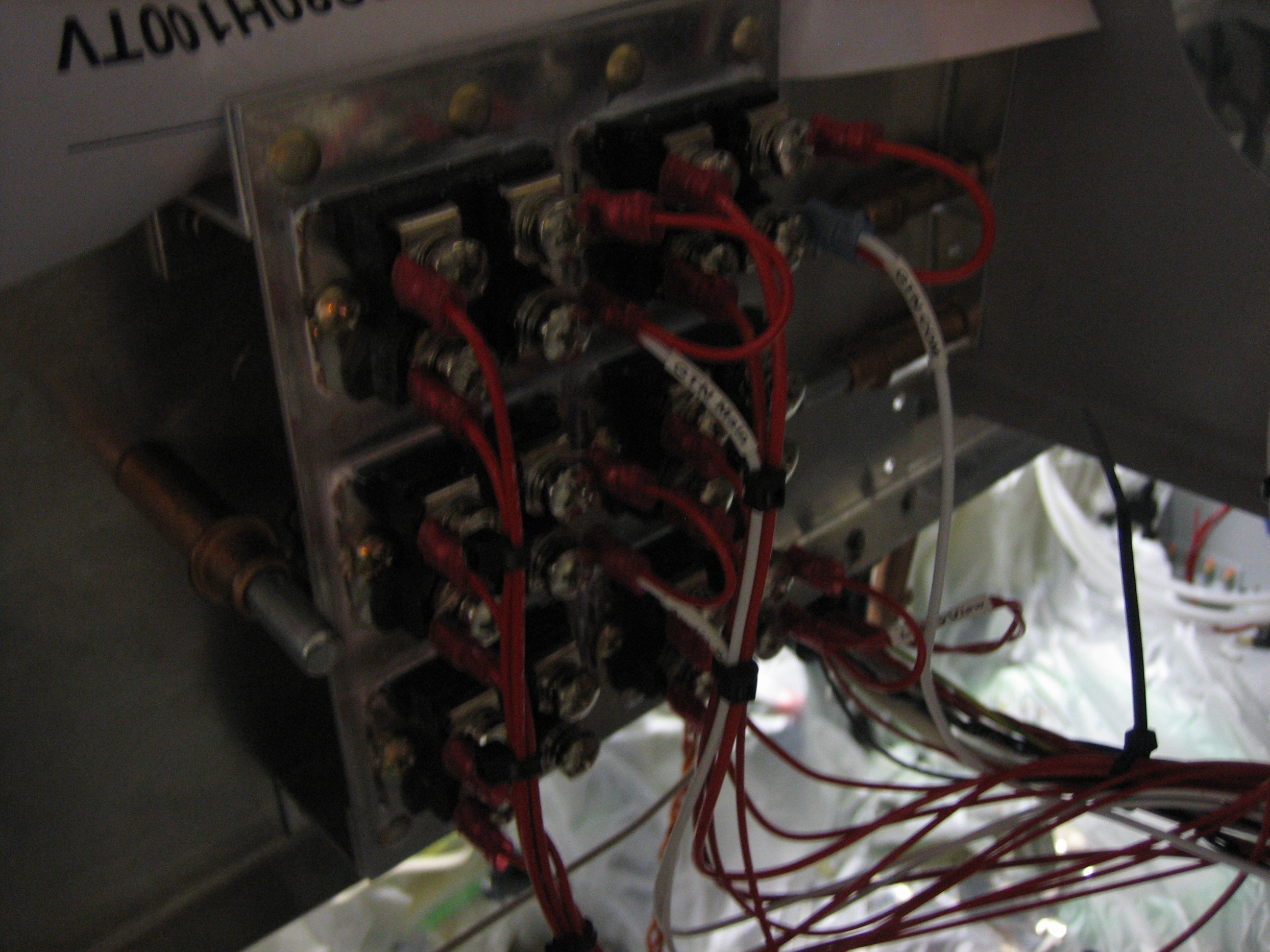
I started running through the VP-X install checklist.  I verified all device power lines and VP-X ground lines.  I also confirmed all switches ground properly.  Afterward, I removed the VP-X Pro blank box and installed the actual VP-X Pro box.

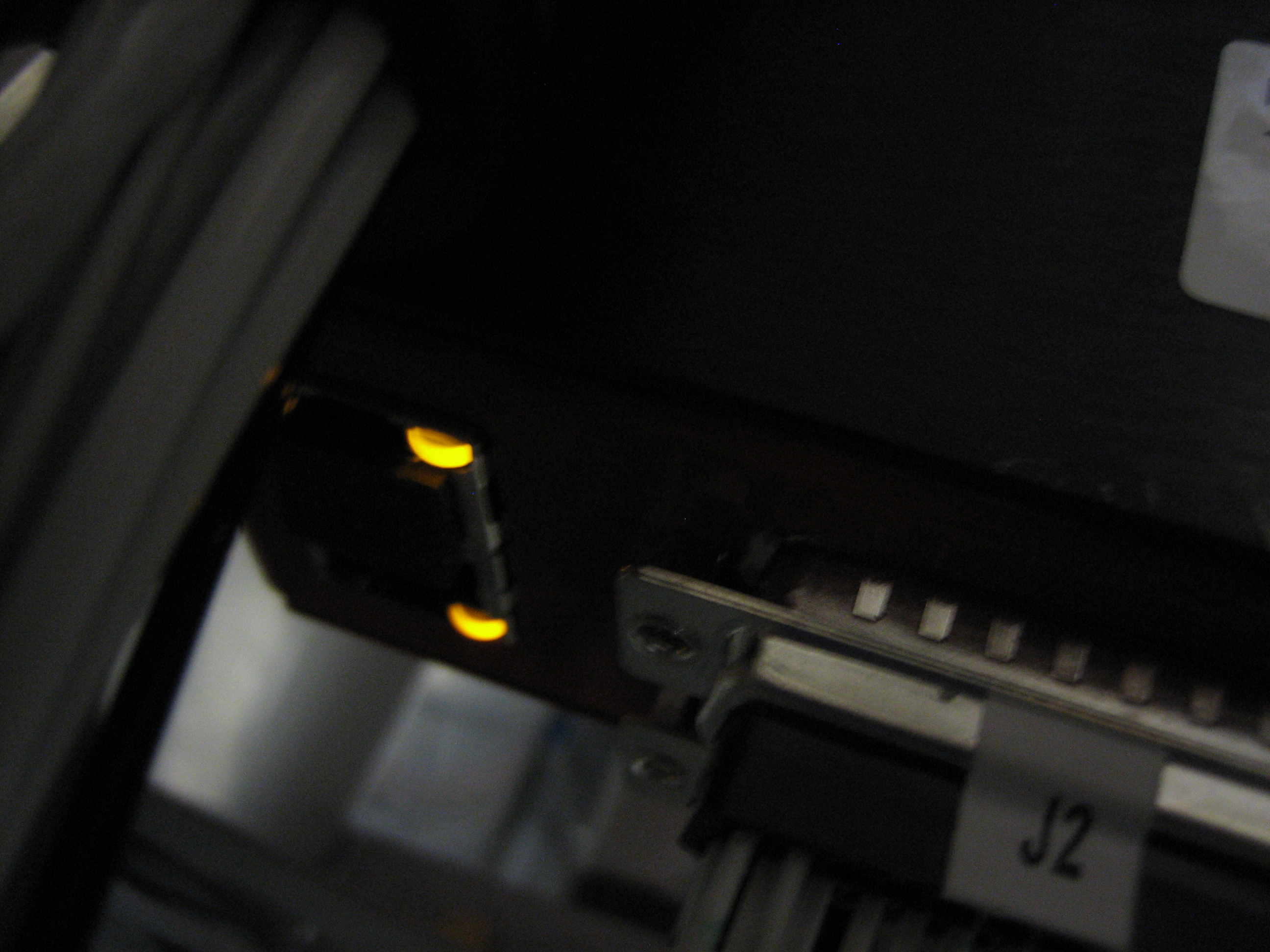
After hooking up all of the connectors, I threw the master switch and verified the VP-X powers up.  These are the lights on the ethernet jacks.

Configured VP-X and SkyView

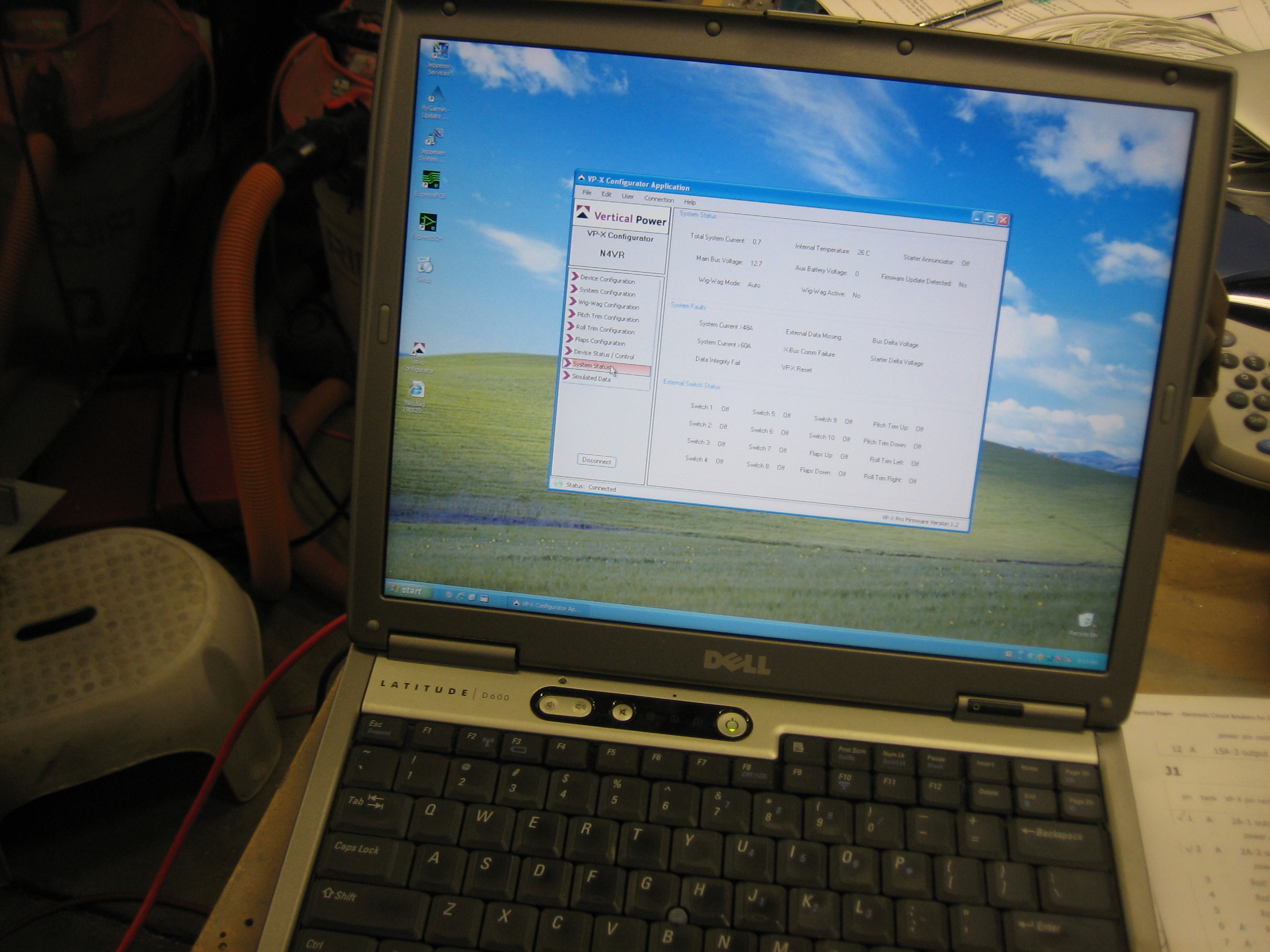
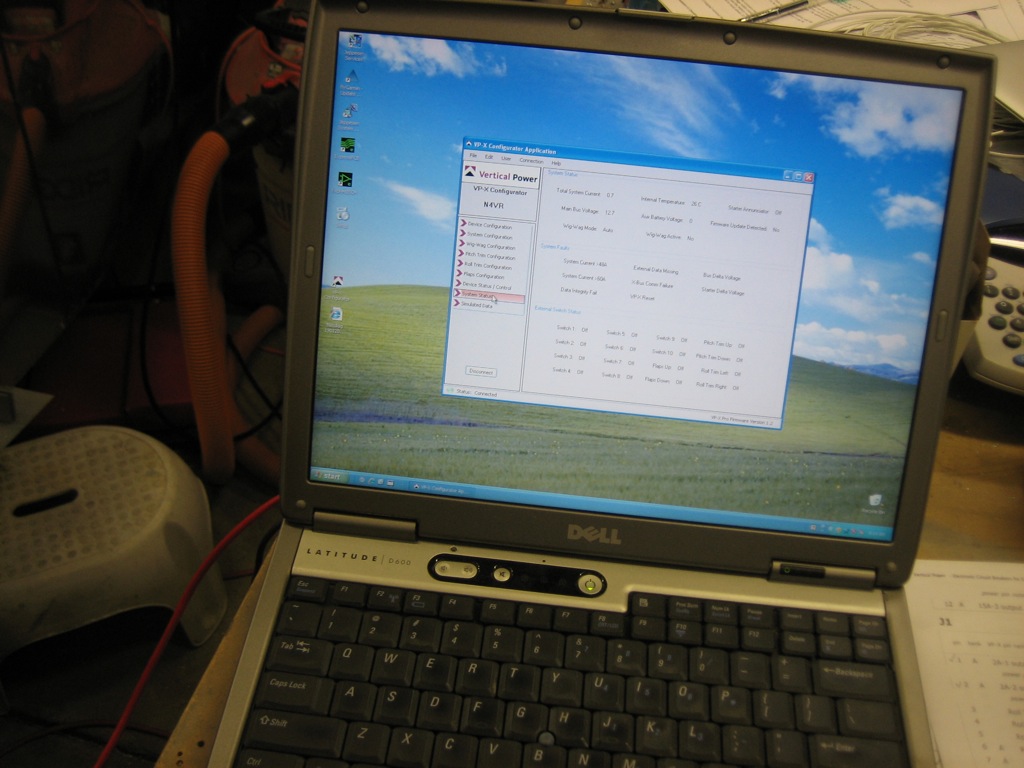
With the VP-X installed and running, I connected a crappy old PC laptop (I stopped using Windows many many years ago).  I ran the VP-X Configurator and configured all of the devices and verified all of the switches are sensed properly.
After upgrading the SkyView screens to 3.2 and entering the VP-X license code, I configured the serial port to talk to the VP-X.  It wasn’t immediately obvious how to get the VP-X screen to appear, but a quick glance at the SkyView installation manual revealed the method.
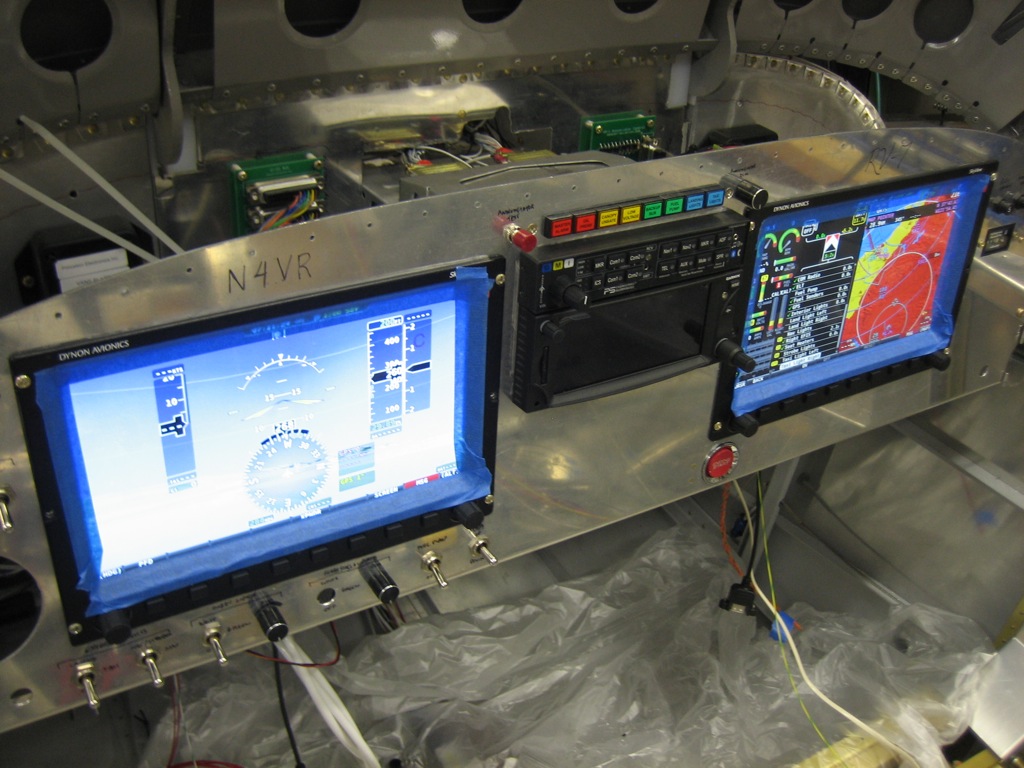
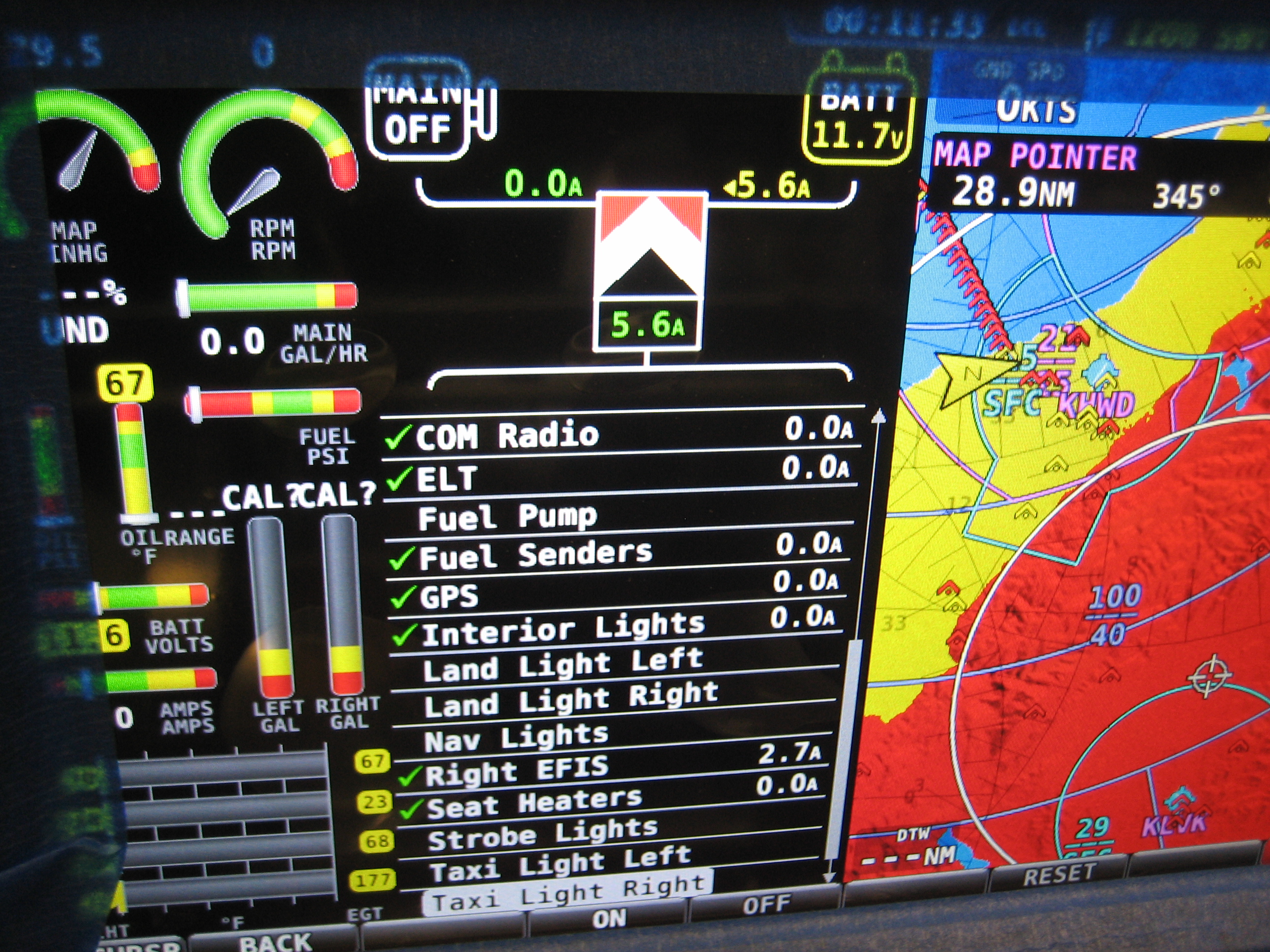
When you’re in the engine page, a new VP-X button appears that brings up the VP-X page.  At the top, you can see an electrical system diagram that shows the power flowing from the main alternator and the battery into the VP-X.  This is a little misleading though since it doesn’t include power that bypasses the VP-X such as the power to keep the master contactor closed and the power to run the electronic ignition.  I *think* this will cause this display to always show some power flowing into the battery even when the actual current flowing into the battery is zero (since the alternator will produce the extra power drawn by the master contactor and electronic ignition, but the VP-X will only show the power consumed by the devices connected to it).
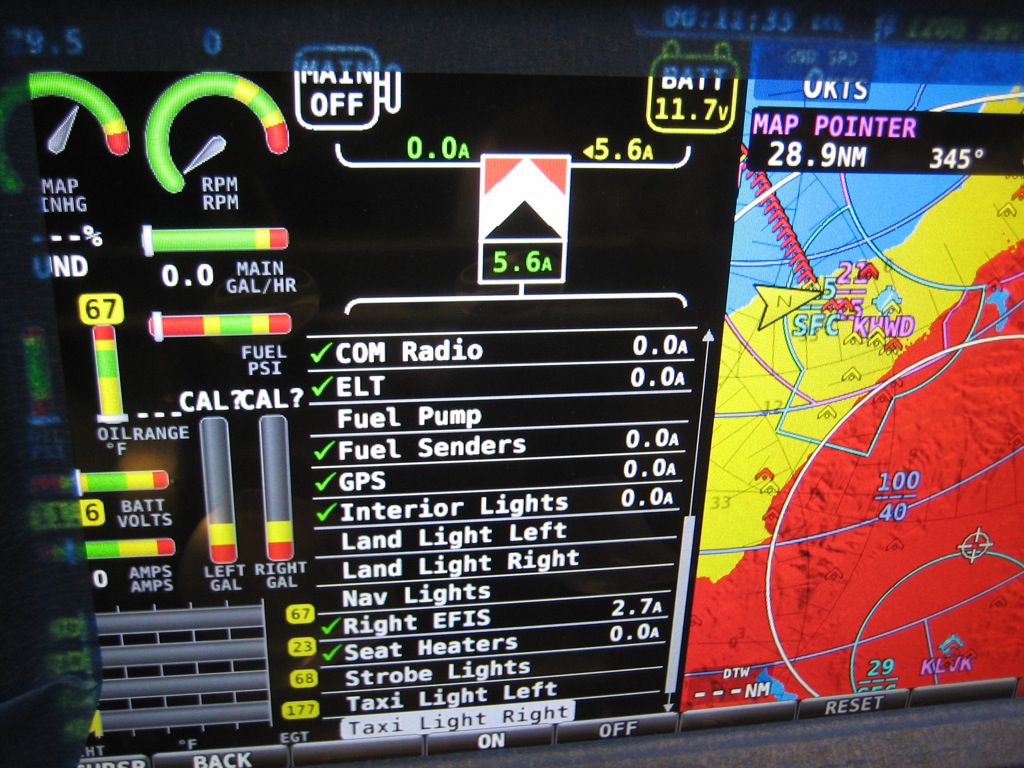
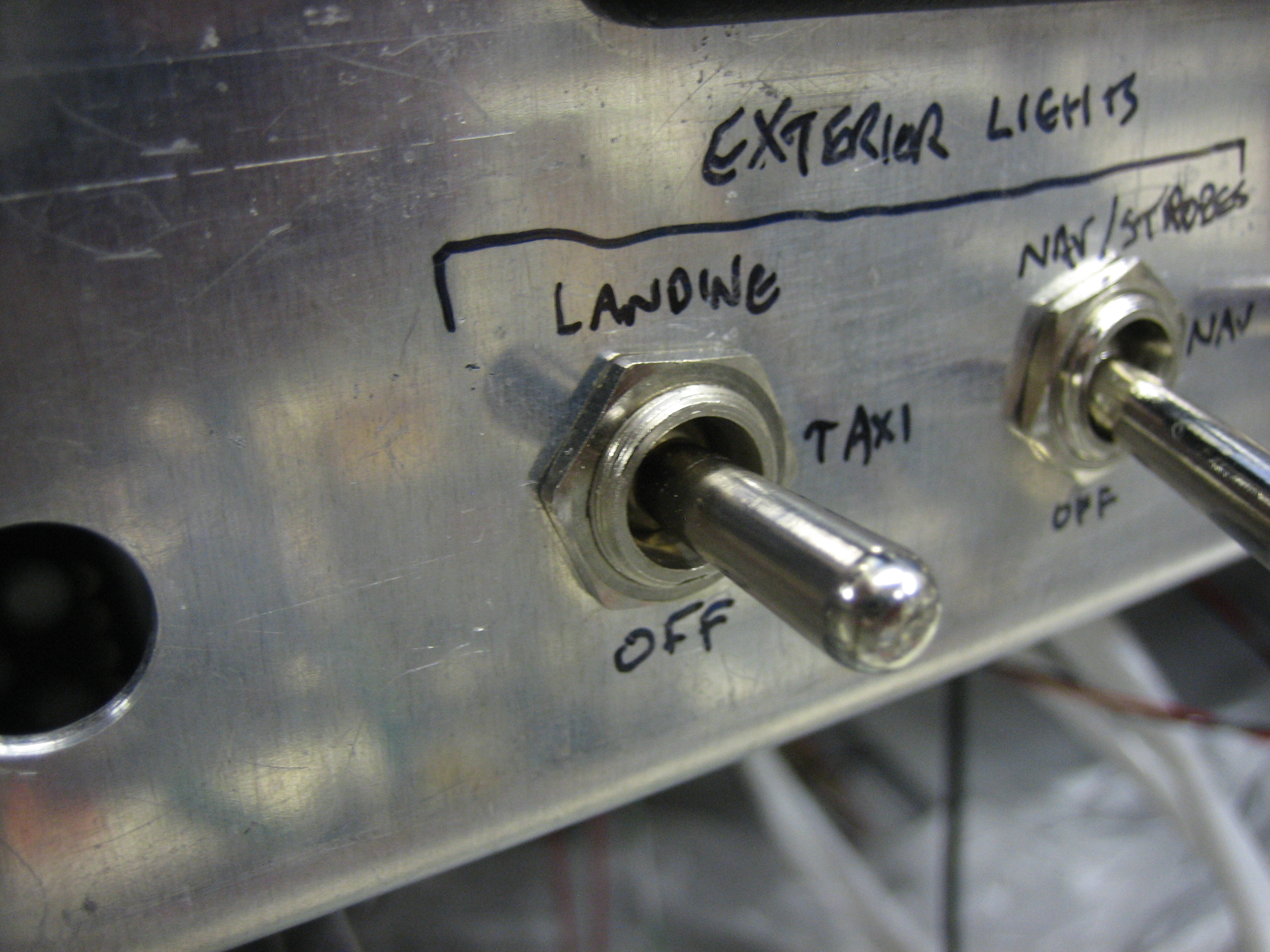
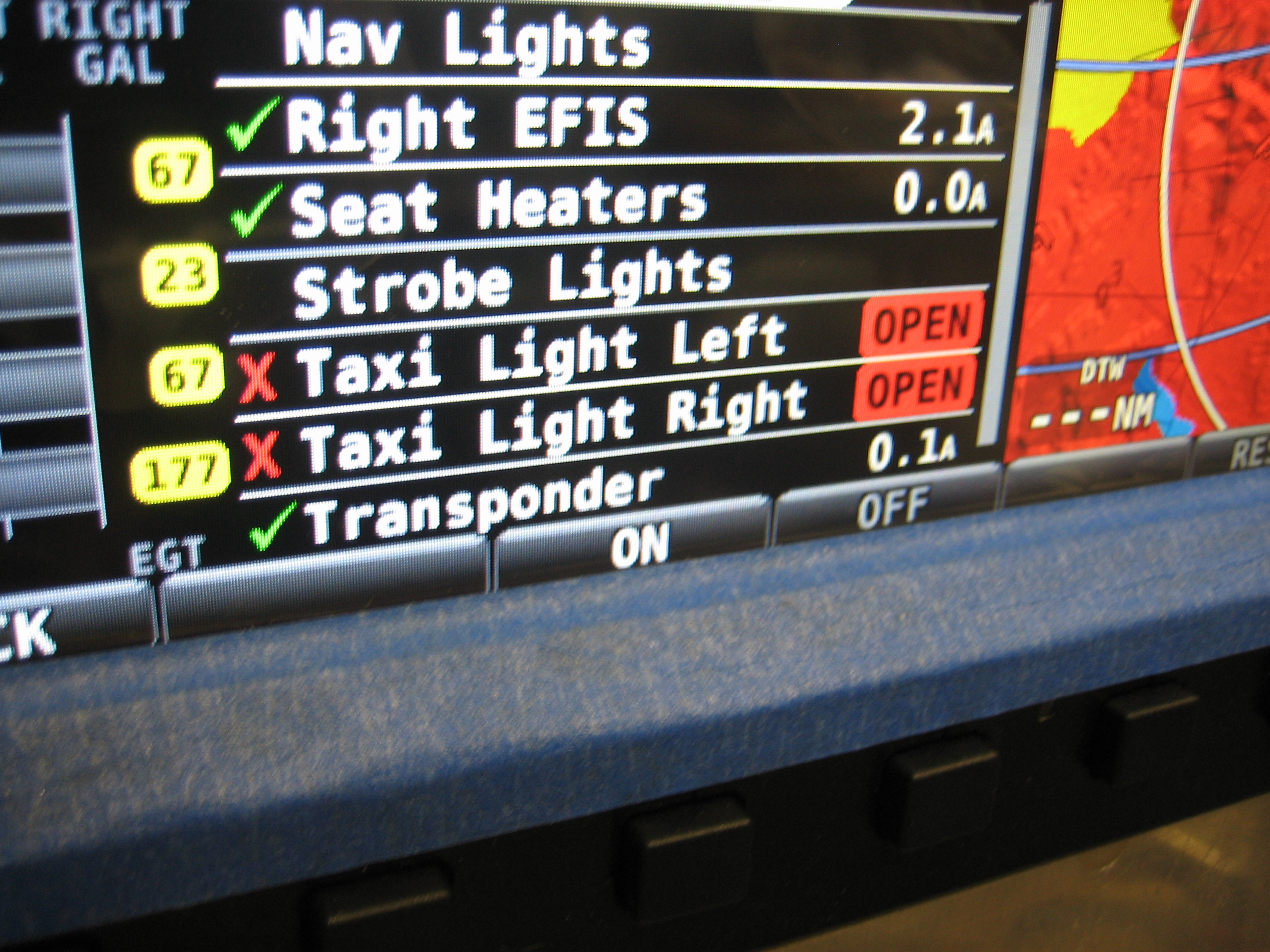
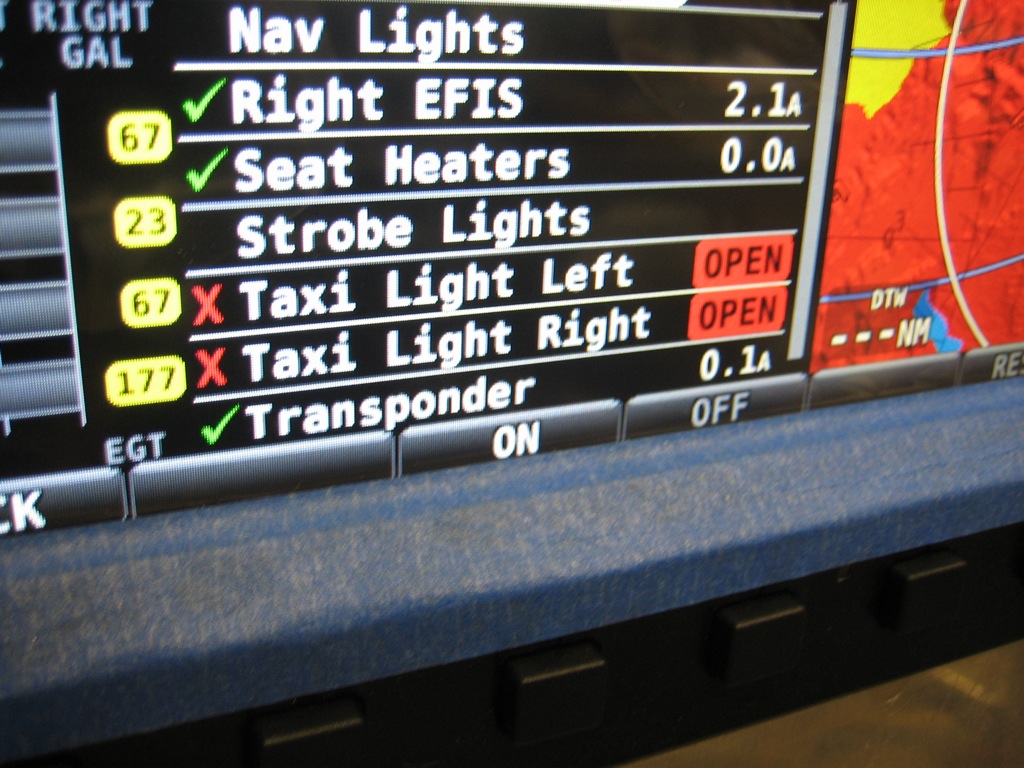
I don’t have the exterior lights hooked up, but this is a good way to test the VP-X fault detection.  I turned on the taxi lights…
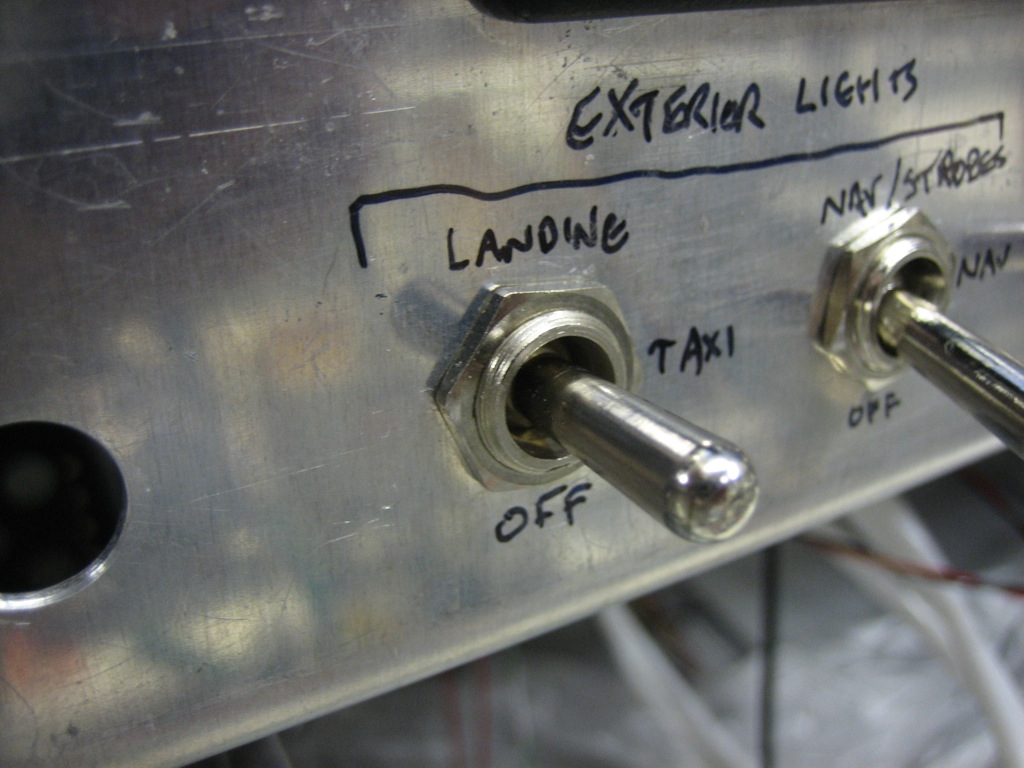
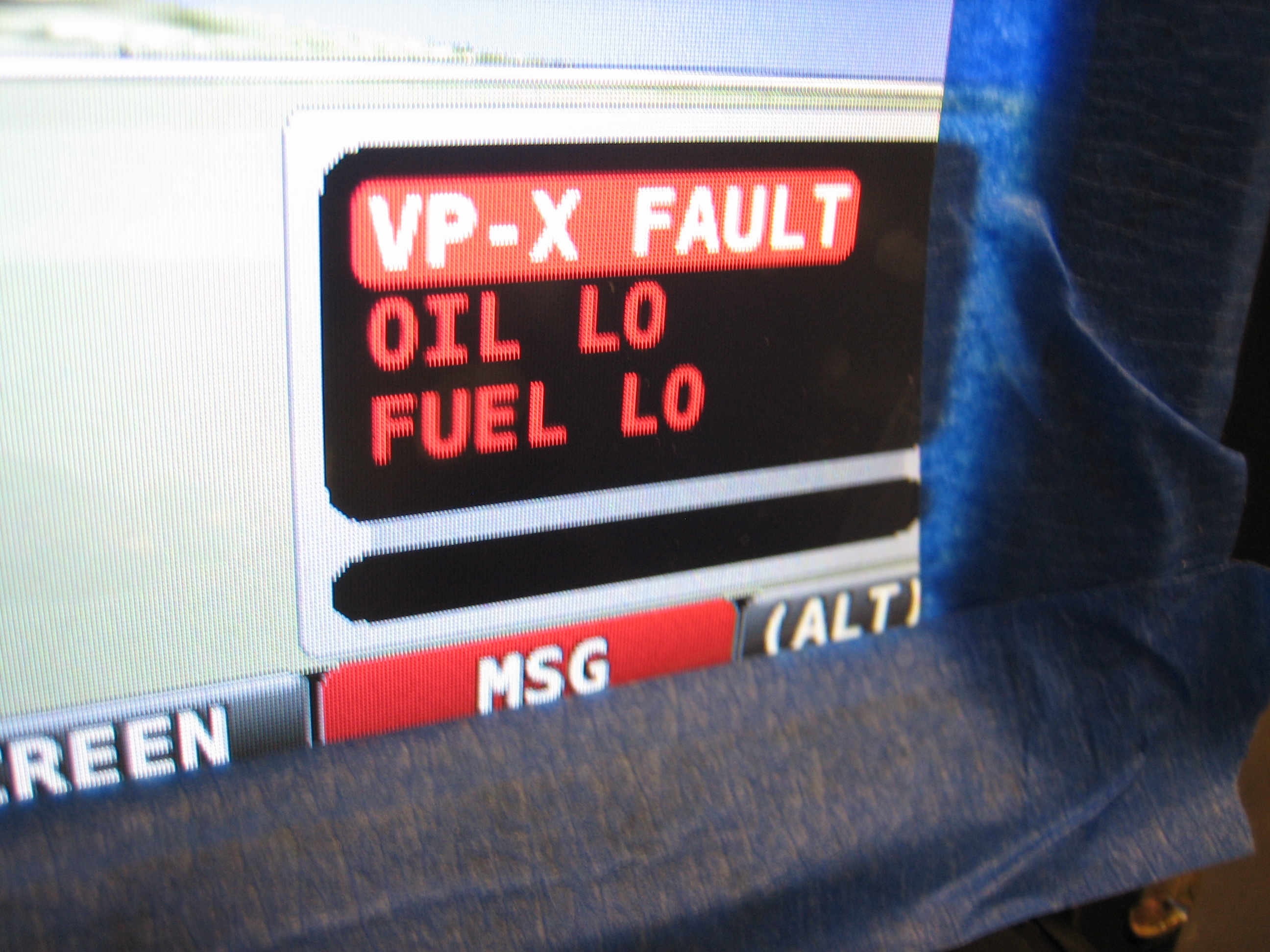
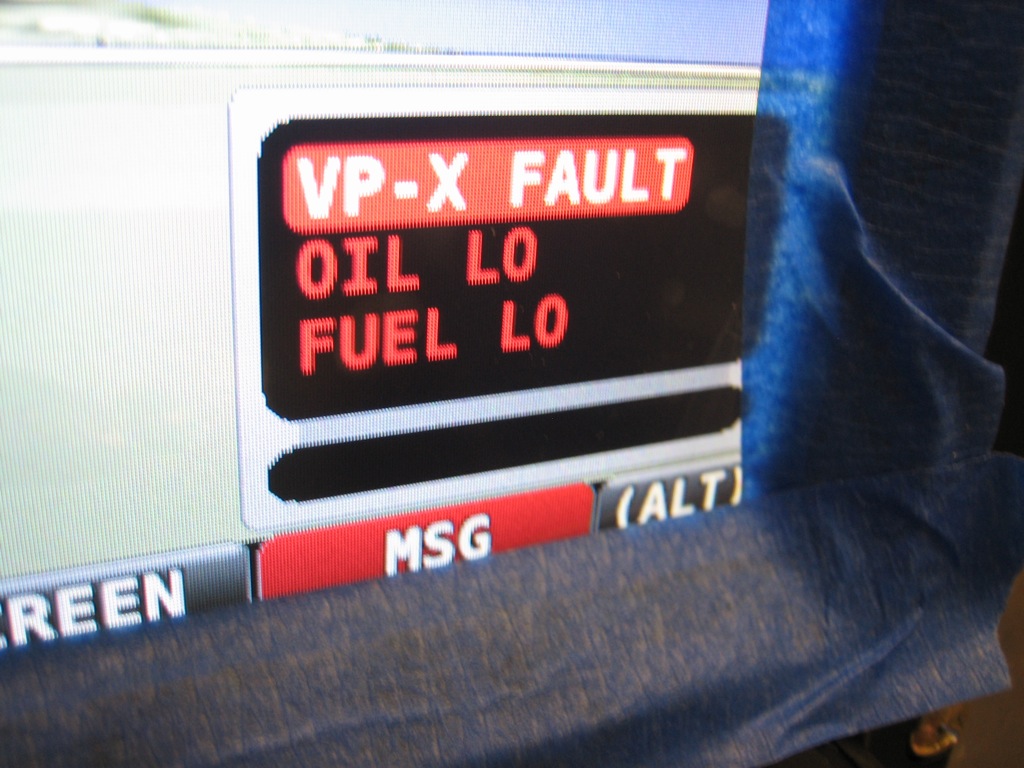
…and the SkyView screen shows a VP-X fault.
The VP-X screen on the SkyView indicates the problem is that the taxi lights aren’t drawing any current.  From here, you can scroll down and reset the fault.  The other nice thing is that device can be turned on or off or controlled directly from this page.  For example, if my fuel pump switch were to fail, I could navigate to that device here and press the “ON” button seen at the bottom of the screen to turn the device on regardless of the state of the switch.  You can even control the trim and flap motors from here.  The buttons change to “Left” and “Right”, or “Up” and “Down” as appropriate.  This is really slick, and I’m very glad I waited for the VP-X and SkyView integration.
Finished Wiring Avionics and Started Annunciators

I got an order from Aircraft Spruce with some red and blue #10 ring terminals, so I finished wiring up the GTN 635 and audio panel to the isolation diodes.  The only things left to connect here are the outgoing power wires to the TruTrak Gemini and autopilot servos.

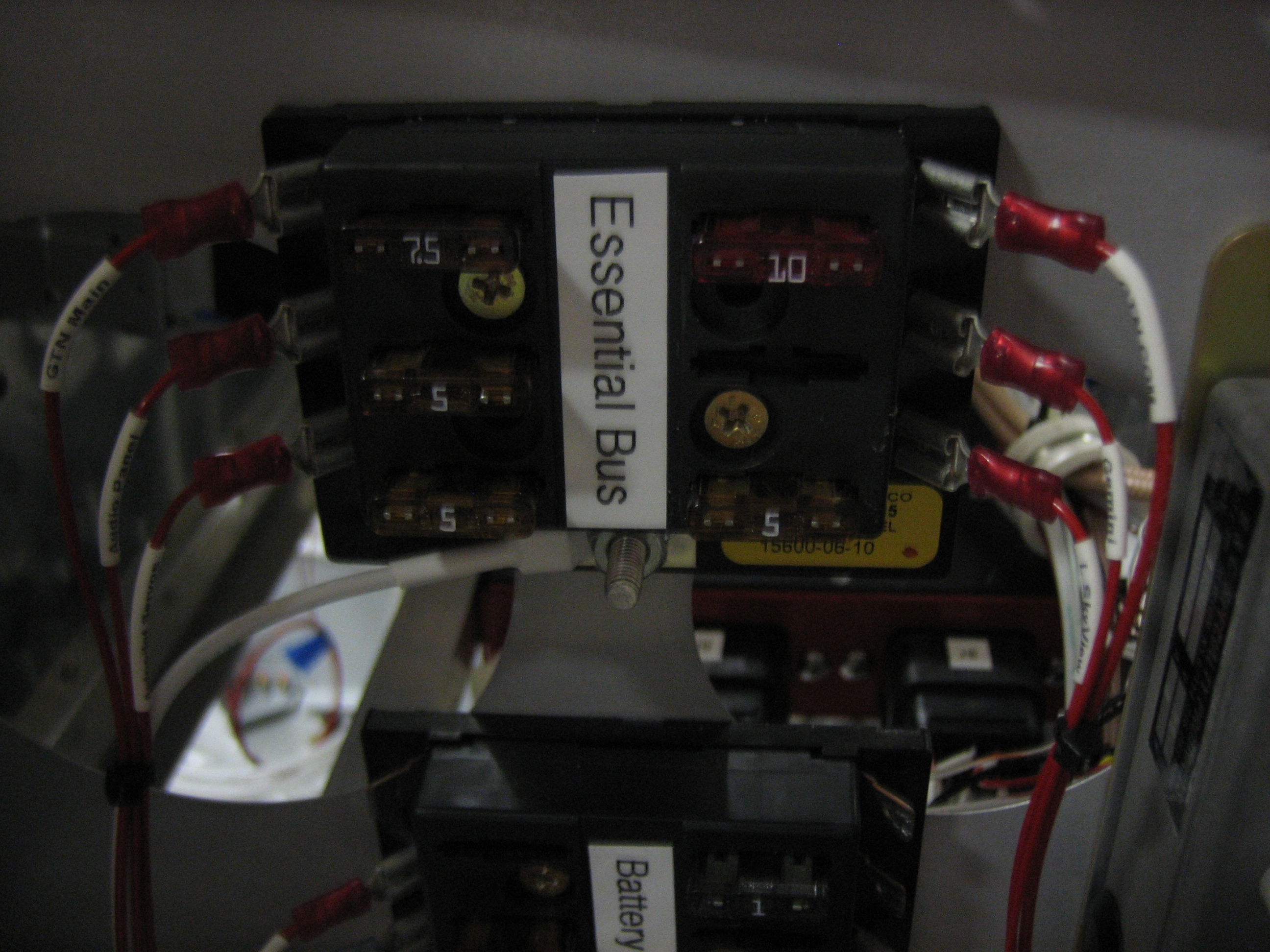
All of the corresponding wires are hooked up to the essential bus fuse box.  There’s no fuse installed in the spot for the TruTrak Gemini since I don’t know what size it will be.

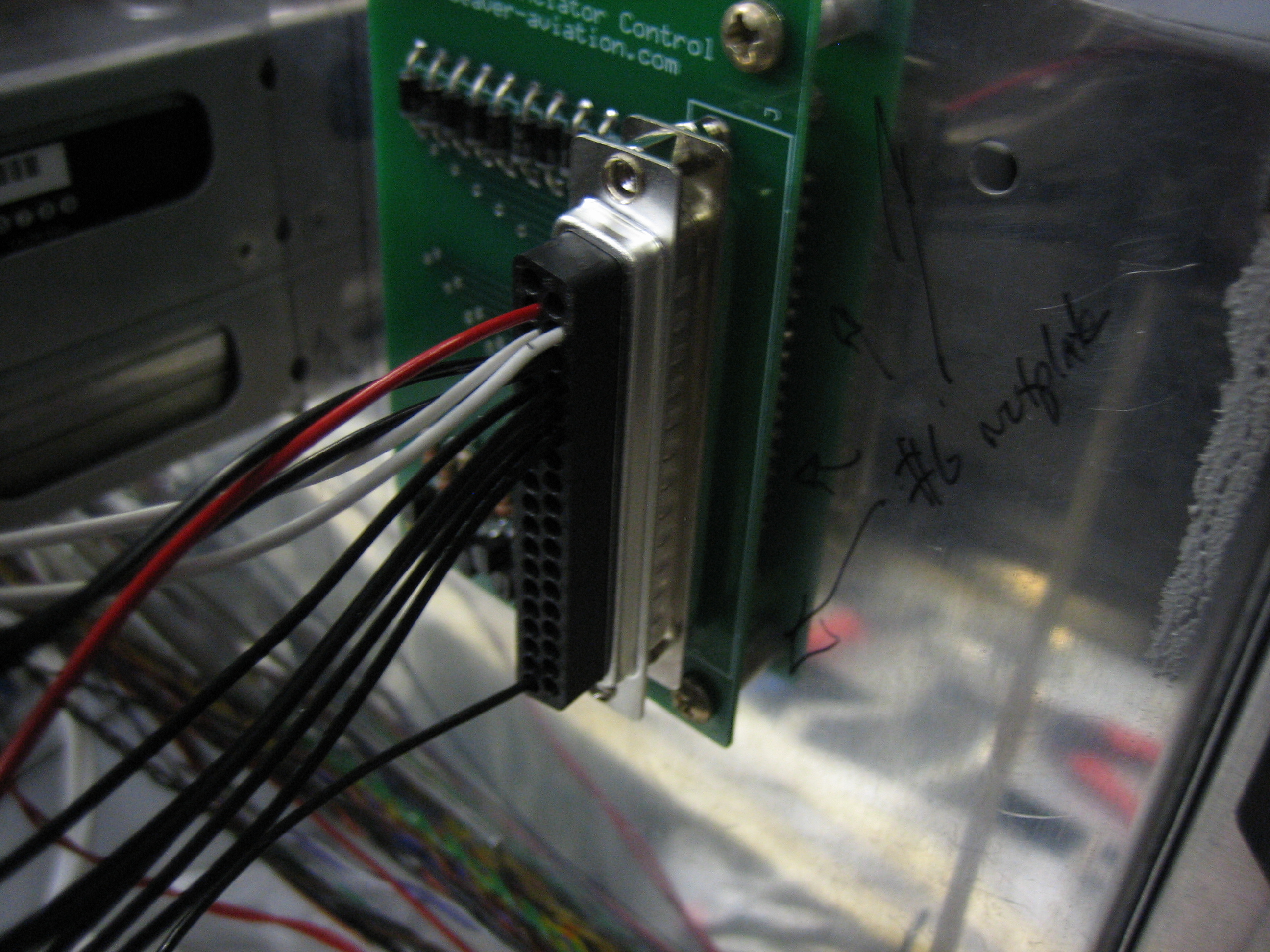
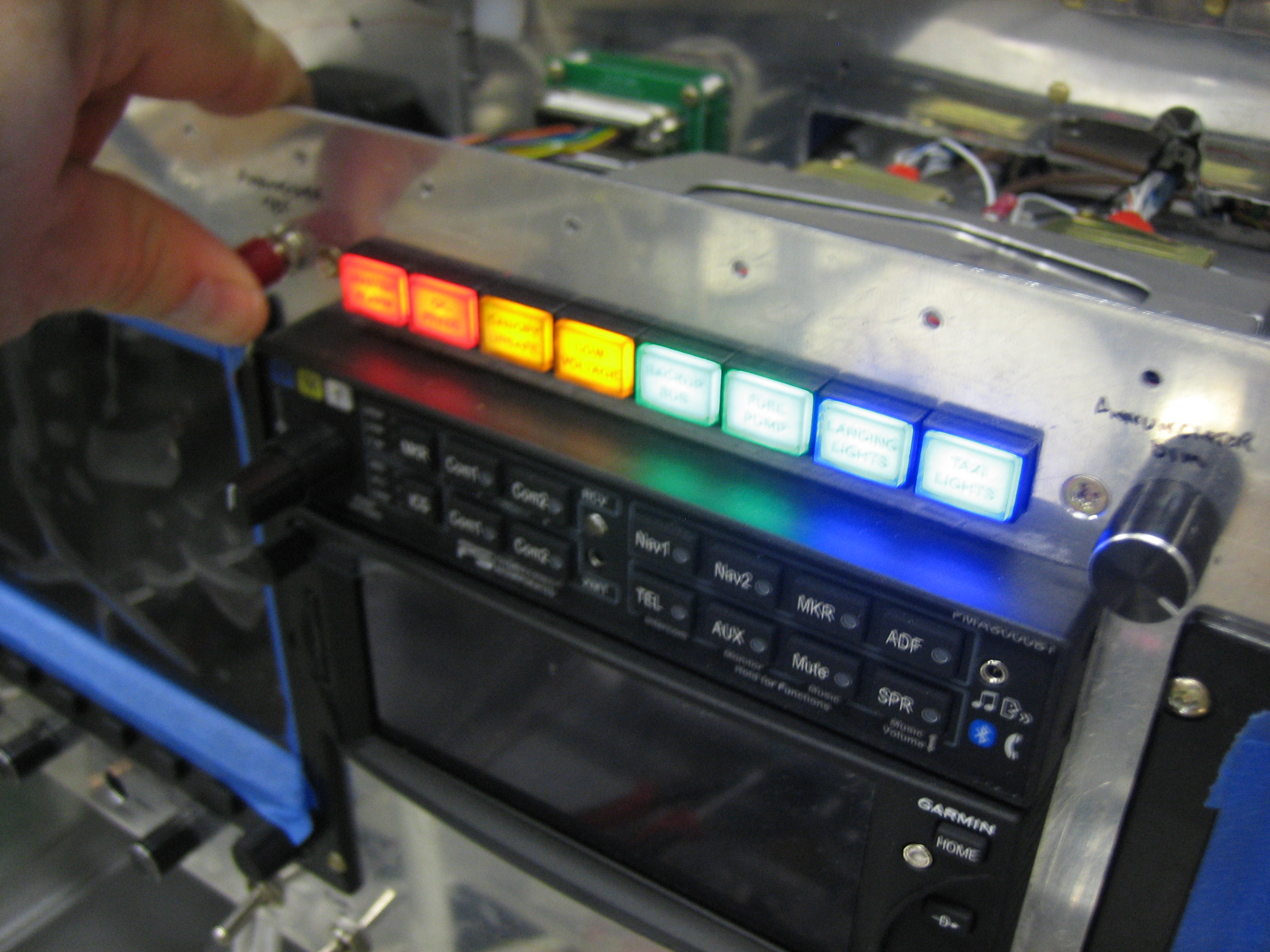
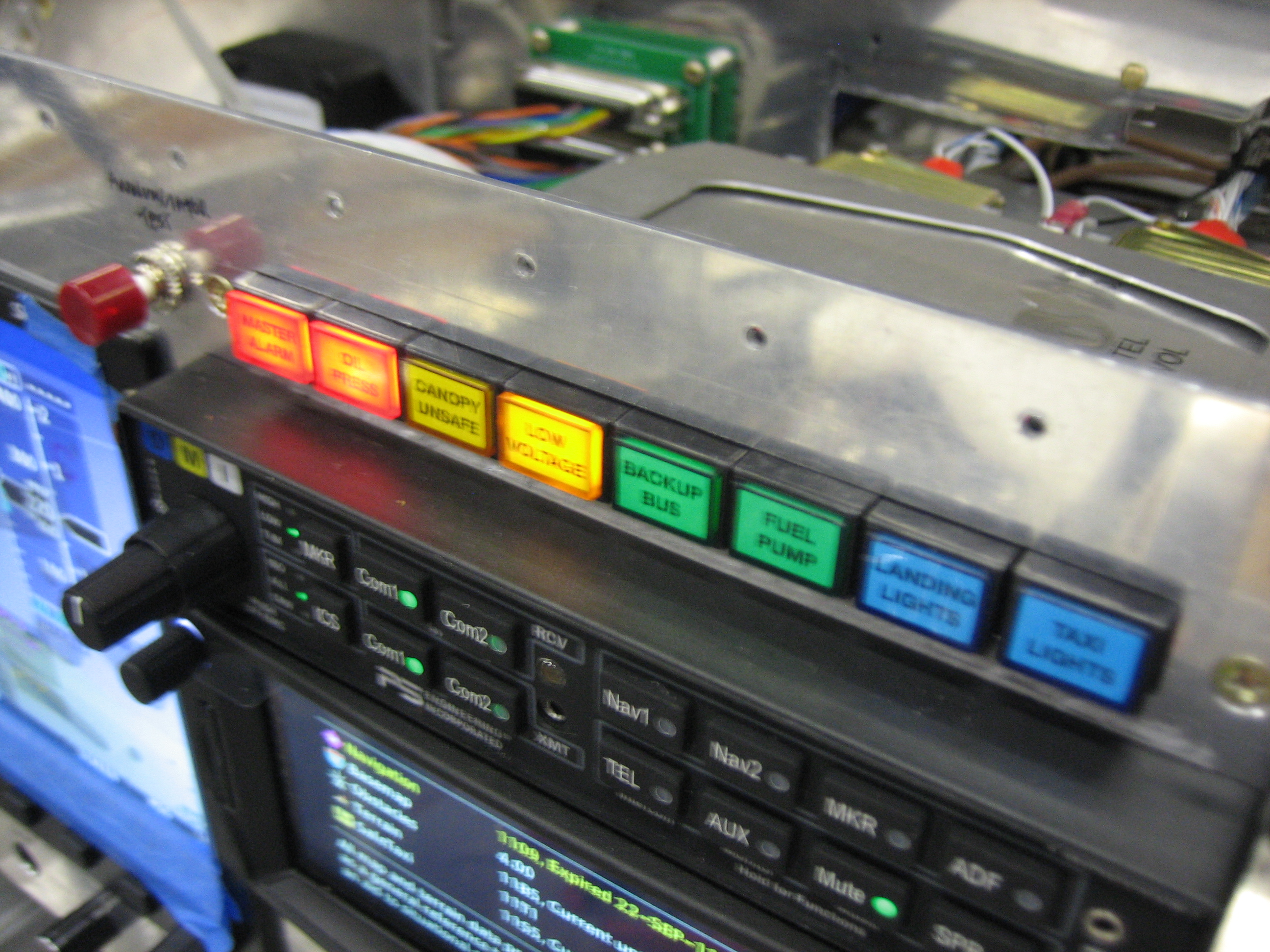
I then started wiring up the annunciator control circuit.

Push to test and the dimmer work as expected.

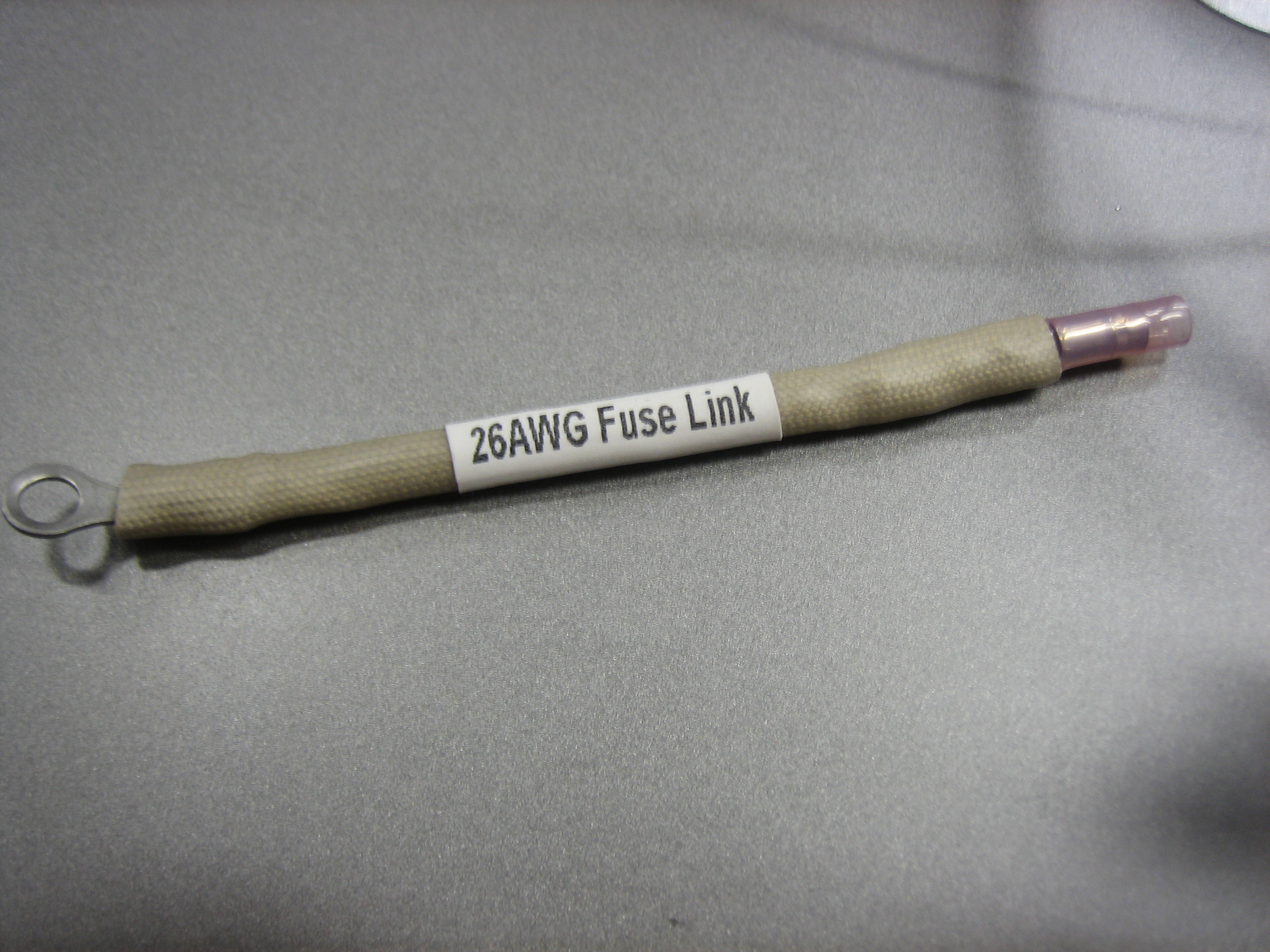
One of the annunciator lights to wire up is the Essential Bus light.  This pulls power off the stud on the essential bus fuse box.  The wire needs to be protected though since the essential bus fuse box is supplied with a pretty fat wire.  If I just used a bare wire from that stud to the annunciator circuit, it could melt and start a fire if it ever shorted somewhere along the wire.  To protect the wire, I could use an inline fuse, but a more reliable way is to use a fusible link.  This is basically just a short length of 26AWG wire with terminals crimped on each end.  The whole thing is covered with some silicone impregnated fiberglass sleeving.  This will be crimped to a piece of 22AWG wire that will run to the annunciator control circuit.  If this wire were to ever be shorted to ground, the 26AWG wire would melt and break before the 22AWG wire got hot enough to cause a fire.  The silicone sleeving keeps the melting 26AWG wire from causing a fire.

I also hooked up a few other lights.  First up, I connected the annunciator light to the voltage regulator.  This light flashes “Low Voltage” whenever the alternator isn’t producing power.  Second, I hooked up the oil pressure light to the oil pressure switch  This will be on whenever the master switch is on and the oil pressure is too low.  This will also serve to remind me to turn off the master switch. Finally, I hooked up the SkyView master alarm light.  This starts flashing whenever the MSG button on the display starts flashing.  It can be configured to go out or stay on after acknowledging faults that haven’t been cleared.